iPhoneRoot.com

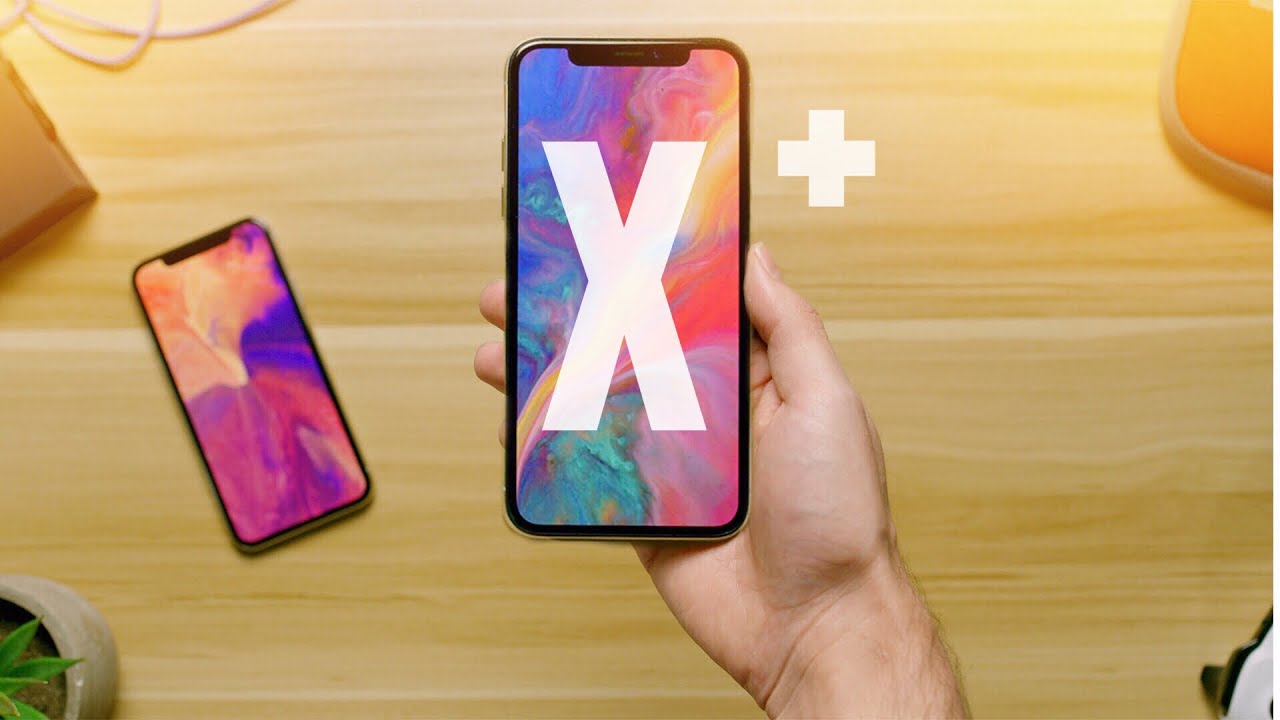
2018 Plus-Sized iPhone Price May Start at $700
iPhone X has a 99% customer satisfaction rate, according to Tim Cook. He told this at the shareholder meeting that took place on February, 13. iPhone X is indeed impressive with the combination of power and design packed into one device.
 Leave a comment, read comments [1]
Next iPhone X Generation May Have a Smaller Notch
Apple is rumored to release three new iPhone models that will feature the improved TrueDepth camera this year. This may lead to a smaller top notch, according to the research note issued by Barclays experts.
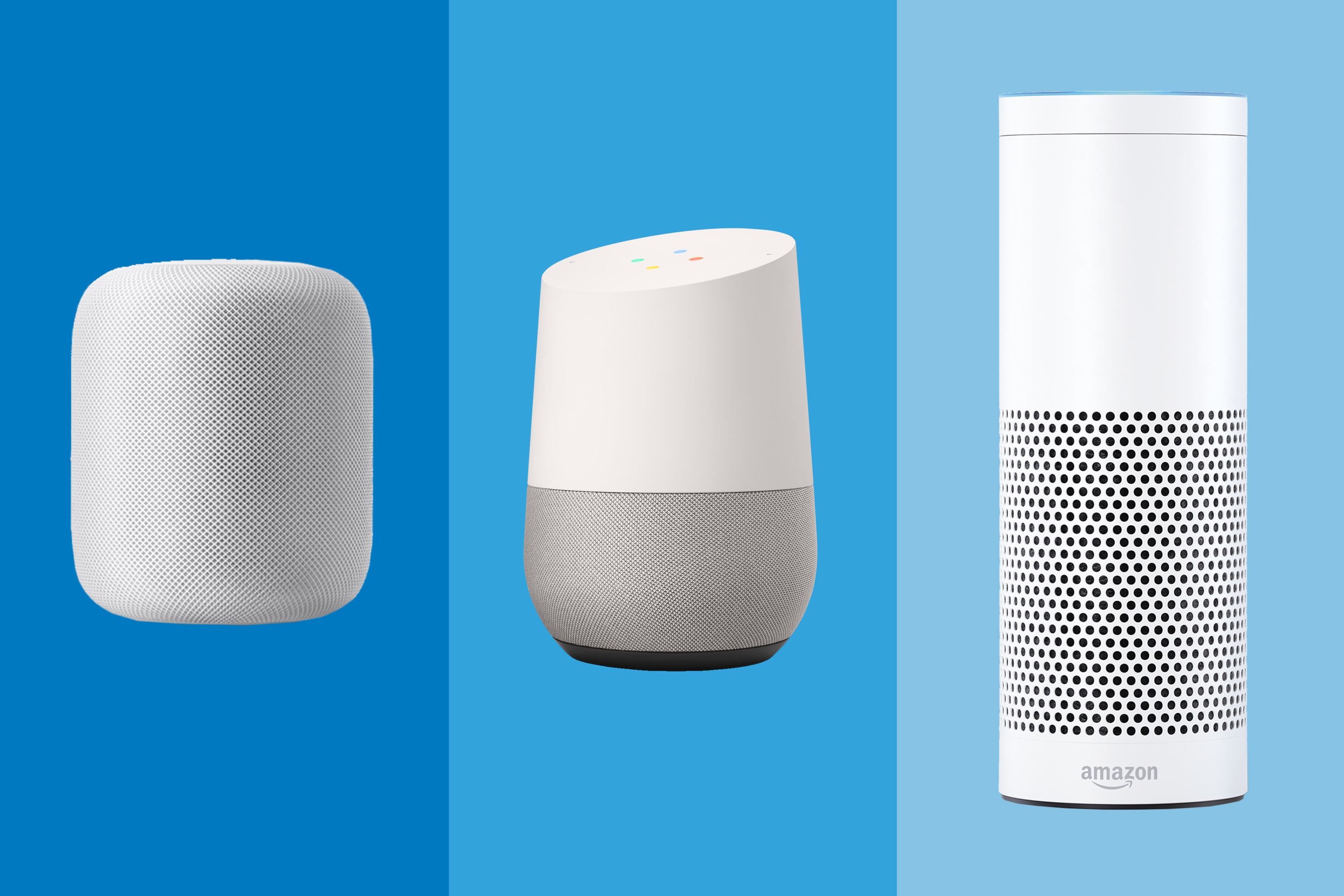
Siri on HomePod Performs Worse than Alexa and Google Assistant
As Apple’s HomePod is now available for public, it is undergoing different tests. The research firm Loup Ventures tested Apple’s smart speaker and shared the results of the tests compared to other smart speakers.
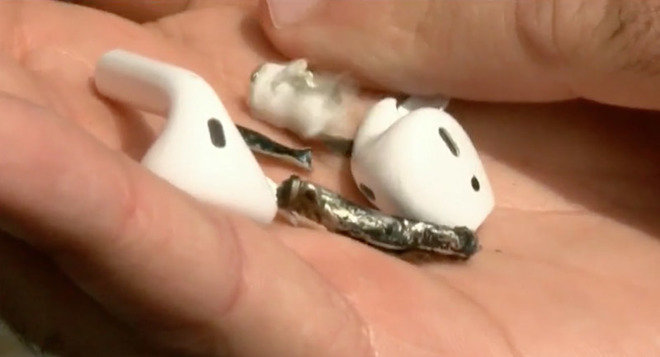
AirPods Started to Smoke Being in Use and Burst Opened
A man from Florida reported that one of his AirPods started smoking while he was working out in the gym. Apple is already investigating the issue.
Apple Confirmed the Leak of iBoot Source Code
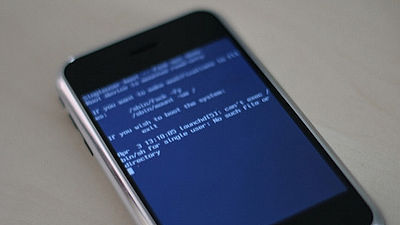
Recently the source code for the iBoot bootloader has leaked on GitHub. Hackers may use such kind of information to find the vulnerabilities in iOS.
Leave a comment, read comments [2]
Apple Issued iOS 11.3 Beta 2 for Publlic Testers
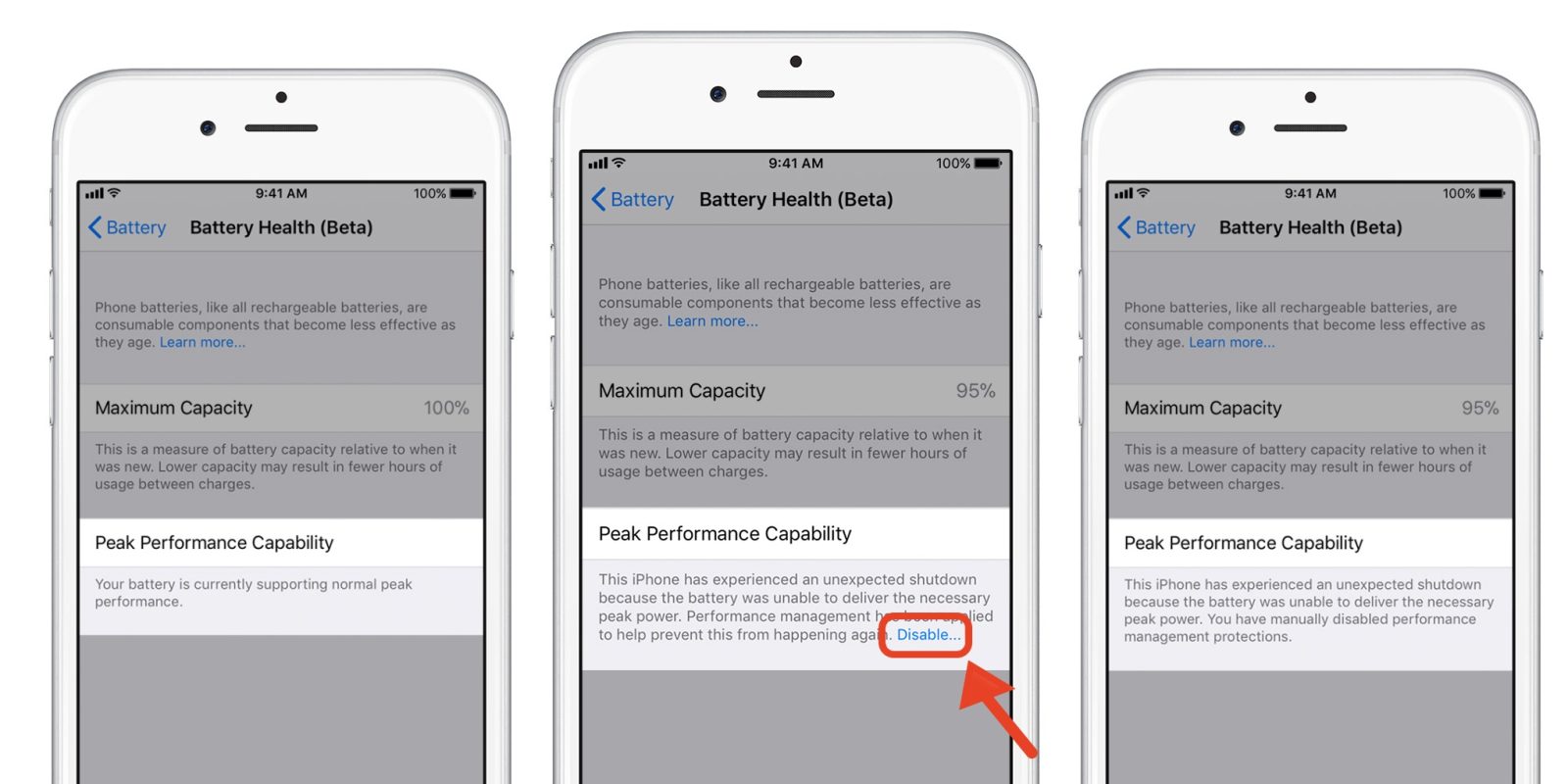
Apple released the second beta of iOS 11.3 with new features, including a long-awaited Battery Health feature, new Animoji, updated ARKit.
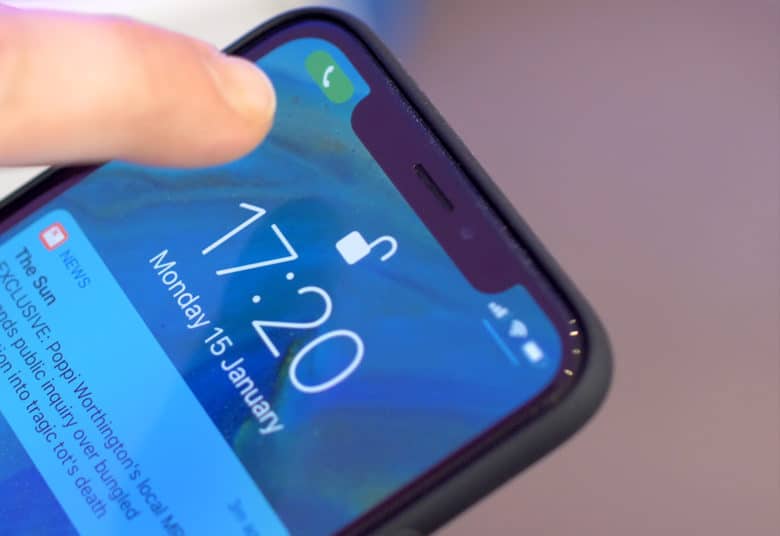
iPhone X Facing Another Issue With Accepting Calls
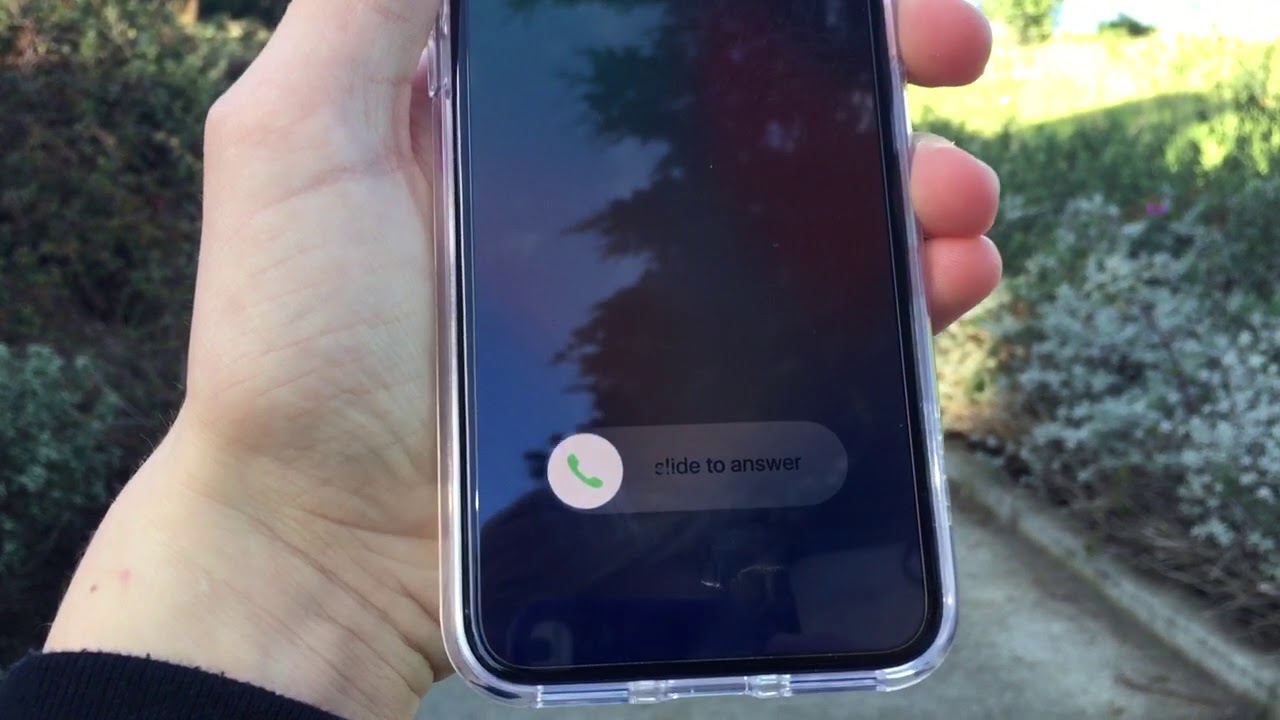
According to The Financial Times report the growing number of iPhone X users faced an issue with their iPhone X: the device’s screen doesn’t wake up when someone is calling so the Accept and Decline buttons don’t appear and users cannot answer calls.
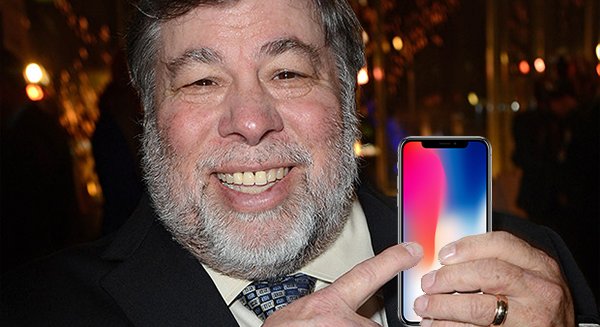
Steve Wozniak is Not Impressed by Some iPhone X Features
When iPhone X has been released, the co-founder of Apple Inc. Steve Wozniak didn’t upgrade his iPhone 8. Tim Cook then decided to send him an iPhone X personally. Having used it for some time, Steve Wozniak then shared his opinion about this year’s Apple flagship.
Apple Stops Signing iOS 11.2, 11.2.1 and 11.2.2, no More Downgrades Possible
Apple stopped signing older iOS 11 versions prior to 11.2.5, namely iOS 11.2, 11.2.1 and 11.2.2 to make sure users run the latest versions of the software.
Apple Computers May Be Able to Run iOS Apps This Year
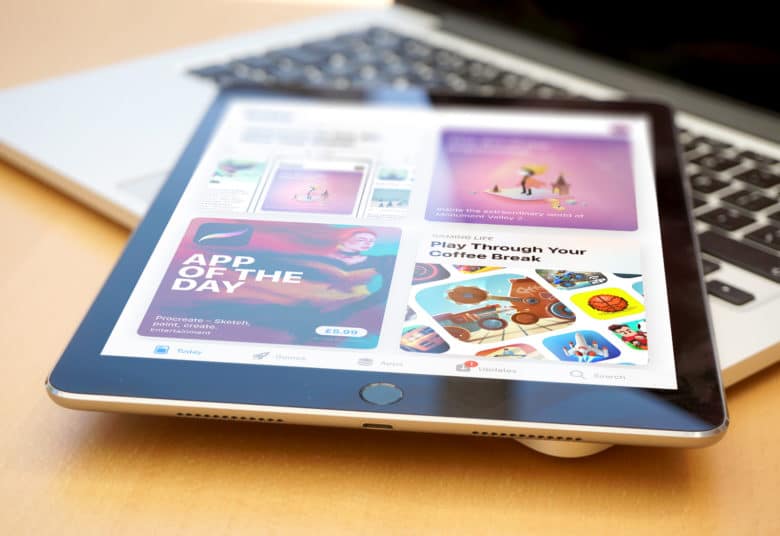
Apple is going to delay some new features of iOS 12 to improve the stability of the platform, but the multi-platform apps should appear in 2018. The reports from Bloomberg and Axios inform that iPad apps running on Mac are to come out this year.
Apple to Put Off Some New iOS 12 Features in Favor of Stability Improvements
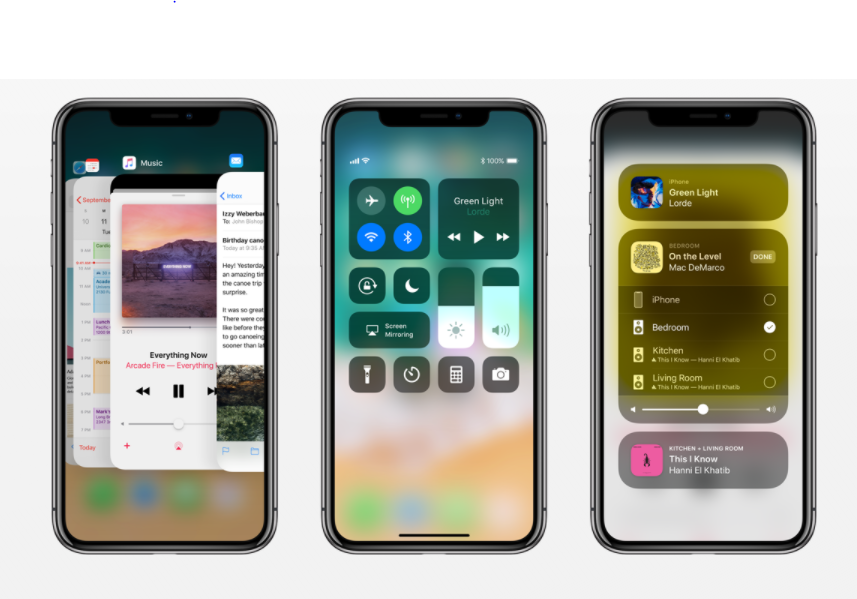
According to the recent report from Axios, some major updates of iOS 12 will come out in 2019. Apple will instead focus on bug fixing and stability of the upcoming iOS.
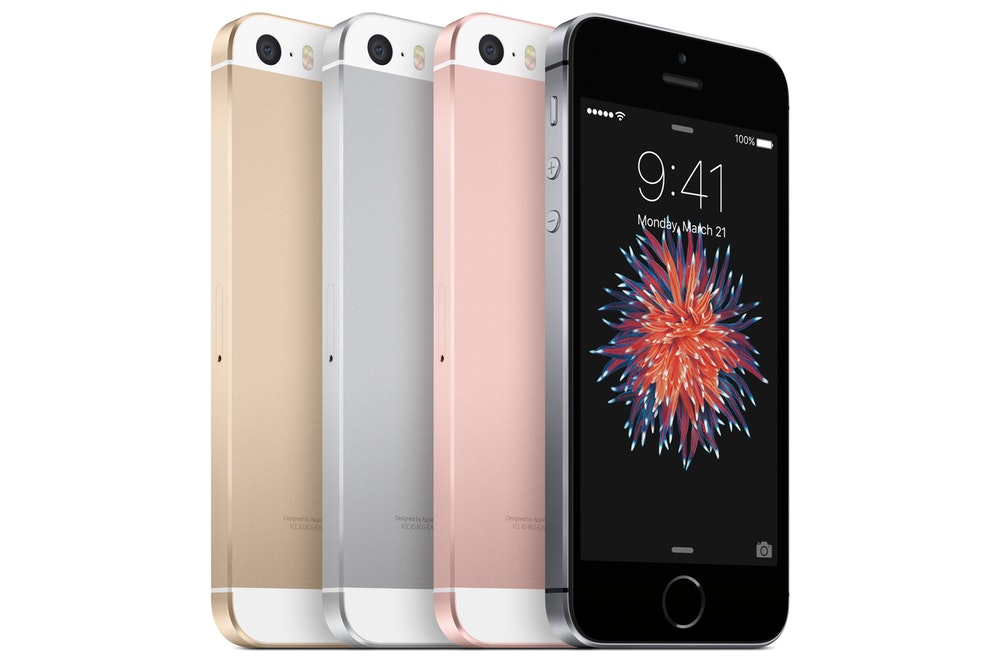
iPhone SE 2 to Come Out in Summer 2018
Apple may release a new iPhone for the middle market this year, according to the prediction of the Digitimes analyst Luke Lin. The new model will feature wireless charging ability, but there will be no TrueDepth camera with 3D sensing ability.